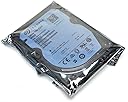
🚀 Upgrade your laptop’s heartbeat with Seagate SSHD — speed and space in perfect harmony!
The Seagate 500GB 2.5-inch Laptop Solid State Hybrid Drive (SSHD) merges the rapid access speeds of solid state technology with the high capacity of traditional hard drives. Featuring 4× faster performance than standard 7200 RPM drives, SATA-600 compatibility, and adaptive caching technology, it delivers significantly faster boot times and improved system responsiveness. Designed for seamless laptop integration without OS or driver dependencies, this hybrid drive offers a cost-effective upgrade that balances speed, capacity, and durability for professional millennials seeking efficient, reliable storage solutions.


| ASIN | B00B99JU5M |
| Are Batteries Included | No |
| Best Sellers Rank | 48,964 in Computers & Accessories ( See Top 100 in Computers & Accessories ) 2 in Internal Hybrid Drives |
| Brand | Seagate |
| Customer Reviews | 4.4 4.4 out of 5 stars (7,061) |
| Date First Available | 14 Jan. 2013 |
| Form Factor | 2.5-inch |
| Guaranteed software updates until | unknown |
| Hard Disk Description | Hybrid Drive |
| Hard Disk Rotational Speed | 5400 RPM |
| Hard Drive Interface | Serial ATA-600 |
| Hard Drive Size | 500 GB |
| Hardware Platform | PC |
| Item Weight | 90.7 g |
| Item model number | ST500LM000 |
| Manufacturer | KOMQI |
| Power Source | No |
| Product Dimensions | 10.16 x 0.71 x 7.11 cm; 90.72 g |
| RAM Size | 500 GB |
| Series | ST500LM000 |
| Standing screen display size | 2.5 Inches |
| Wattage | 2.9 watts |
A**R
Great quality for good price + no problems with the ...
Great quality for good price + no problems with the ssd price per gb. Worked perfectly on first boot - as expected. I fitted it on an old Acer 5750g laptop, and sshd is much faster than the old hdd. Quicker system start, waking it up from the sleep mode is nearly instant, helped Serato DJ a bit as well (especially when downloading tracks in the background and playing music at the same time). I do not think I couldget much more from buying an SSD drive for such an old laptop, and for much better price SSHD made all the difference I needed. The only issue I've had, was when I wanted all of my mp3 files from a certain library (+/- 300 songs) to have their context data indexed (need to be able to search for data contained in IDtags) - took a while to process, surprisingly long I'd say. Still - likely be an issue with the OS rather than hardware itself, and I only do it every now and then - definitely a 5 star product.
K**O
First Class SSHD
A quick [re]search shows that this Seagate SSHD drive (Model STBD1000400) is just a repackaged version of the most popular SSHD model ST1000LM014 from Seagate, and perhaps appropriately tagged as '#1 Best Seller' here on Amazon. You normally pay slightly more for the glossy package, a.k.a 'Retail Kit', as opposed to a frustration free OEM package for the ST1000LM014, unless you catch it at the right time (which fortunately I did by chance) with a [strange] price fluctuation sometimes getting even cheaper than the ST1000LM014. This drive definitely made a difference to the operational speed of my laptop as files are accessed faster so in that sense it is better than the conventional HDD. The price difference between HDD and SSHD is quite significant (£30-£40); the question therefore arises, is the performance gain worth the price differential? Also note that the speed increase depends on caching where most accessed data is cached in the 8GB SSD memory. If somehow you change the drive geometry by defragmentation or disk formatting, then the SSHD is back to HDD. You have to use your system again so that the SSHD will re-learn the caching process to boost the file transfer by utilising the SSD cache. There are some caveats to the SSD cache: (1) the 8GB size must be too limiting considering HDDs use 3x to 4x this for buffering anyways; (2) not everybody's file access patterns are identical so for the limited SSD cache benefits could be varied from application to application; if file data changes often then the benefit of the SSD cache will be minimal; (3) the SSD has a limited life-span for write operation (this SSHD clearly labelled with 3-year limited warranty) so the implication is that of back to HDD if the SSD wears out in 3 years or so. So, is the price mark-up in the order of 60-80% for SSHD over HDD worth the benefits (which are not even guaranteed as the performance is much dependent on the statistical nature of file data being accessed)? Very hard to answer as there are many unknowns to have a more objective assessment. This is one of those approaches that require 'cut and try' method. Try it and see if it works for you. What works for me may not work for you at all. Saying that I'm somewhat convinced it works for me. I use the SSHD in a laptop often used for Visual Studio based Windows programming whereby a large number program files are loaded but only a small percentage changes over a given time. This makes it ideal for SSD cache to step in with the non-changing files and hence making the access as close to the SSD drive. I can clearly see the difference between this SSHD and HDD I had before. I hope this helps.
T**T
Fantastic!
My laptop HD died on me so I bought this Hybrid drive to replace it. It is every bit as good as the advertising claims. I reckon my laptop now boots in about half the time - 15 seconds, and shuts down almost instantly. Also, the machine comes out of sleep in a couple of seconds. An undocumented advantage is that Internet connections are also noticeably faster, presumably because much of the cacheing is done via the SSD. I've had it for a couple of months now with no issues. So why only 4 stars? Seagate haven't really thought these drives out. The HD part defragments just as much as any other HD. Mine is currently 38% fragmented - which would have been crippling on anything other than a Hybrid drive. But you can't defragment without compromising the SSD. Every defragmentation shortens the life of the SSD and also temporarily slows it down since defragtmentation destroys it's 'memory' of what you do most often. The simplest solution would be a utility that temporarily suspended the operation of the SSD until you had finished defragmenting the HD. So far as I know, no such utility exists. The only solution is the unsatisfactory one of defragmenting much less frequently than the state of the HD requires. This nees sorting!
A**R
Bought for my PS4 console as OEM was giving filesystem errors. I read reviews for the disk on Amazon.com and then went with the purchase. The disk was delivered in sealed anti-static pouch with packing material around it in a box. It was not in original box of manufacturer. I exchange the disk in PS4 and copied the data from backup. The initial boot was smooth and all seemed fine. Over time the disk logic seem to have optimized the data storage layout in SSD part as those games that I play often do have a low load/unload time. The console now does boot up fast and games load faster.
P**X
I'm writing this not only to give positive reviews for these two products, but to consolidate the hours of research and trial/error I did during install: OEM: HD - Fujitsu 320 GB HDD - mhz2320bh g2 ATA, 5400rpm RAM - 4.00GB (3.75 useable); 2x 2GB, 800MHZ, 200-PIN, PC2-6400, Sdram (Sodimm); DDR2 800, CL=6 NEW: HD - Seagate 1 TB SSHD, 6Gb/s, 64 MB Cache 2.5” RAM - Komputerbay 8 GB (2x 4GB) PC2 DDR2-800 SoDIMM Dual Channel Install of new hardware on HP dv7 1245dx: I installed the RAM and SSHD at same time. 1. Before opening up computer, I backed up my OEM drive to an external drive. Also, whenever opening up the laptop, be mindful of static electricity. I wear nitrile gloves to avoid any discharge. Doesn’t take much to cause issues. 2. RAM: Laptop recognized RAM automatically after restart and utilized right away. Showed up in System Information screen. Noticeably faster. Awesome. I also noticed that my fan, which usually runs at high speed about half the time, didn’t run high at all during all of this. 3. SSHD: This computer has two hard drive bays. You can install the new drive into either bay. The original bay (on left) will be labeled “0”, and the second one is “1” in the Disk Management program in Windows 7. Since having both hard disks in the laptop, I was able to do all the following from the same laptop. Did some internet searching, but here’s how I installed new SSDH: a. Start type, “Create and format”; should get a menu item that reads full, “Create and format hard disk partitions”. b. This will bring up the Disk Management program from which you can interface with the hard drives on your computer. My new SSHD was labeled default, “Disk 1”, and reading as, “Online”. c. Right click on Disk 1 New Simple Volume… This will allow you to copy files to that drive. d. Assign whatever letter and name you want. It will get changed by Windows later to C:. (I named mine “A:”). e. You should be able to now see the new drive show up in Windows Explorer. f. Now to install from OEM to new drive to become the primary. (If you simply want your new drive to be the secondary, then copy and paste whatever you want to the new drive – it does not need an OS to do this): i. I used Macrium Reflect Free. Install this or whatever mirroring software you choose. ii. My OEM drive has a C: partition and a D: Recovery partition. If you copy both these to the new drive, then the new drive will use only the amount of memory that is required for these drives, and deem the rest of the new drive as “Unallocated”. You can extend the memory range only for the partition that is physically next to this unallocated partition within Disk Management. If you copy both the C: and D: partitions of the OEM drive, then the D: Recovery partition will be the only one you can extend, as it will be physically next to the unallocated partition. So… iii. Using your mirroring program of choice, copy ONLY the C: partition. This will allow you to extend the memory space of this partition to all but a small amount of the new drive. May take a couple hours. (*Note: One of the options is to create a Dynamic partition. This will allow that partition to communicate with other separate drives. I didn’t find this necessary.) iv. Go back into Disk Management and make a New Simple Volume of this small space on the new drive. Label as, “Recovery”. (*Note: I was not able to copy the D: Recovery partition from the OEM to the new drive. When I tried through Macrium the last screen prior to initiating this move said it was going to format the A: drive. You may be able to get this work.) v. Go back to Disk Management (via, “Create and partition” in Start search bar). You should see a clone of your C: partition on your new drive, and a formatted, empty D: Recovery partition. g. (After some internet searching it was said that I would need to change the boot order within BIOS to read the new drive first during boot. However, I found this not to be necessary.) h. Shut down laptop and take the OEM drive out of the left bay and put the new drive into that bay. Leave the OEM out for now. i. Reboot. This may take a minute or so due to system reconfiguring. j. Check Windows Explorer. The new drive, now in the left bay, should show up as C: and D: Recovery. This is now the new boot disk for the laptop. It may even be a good idea to restart, just to make sure all is in order with the new drive. k. You can put the OEM drive into the right bay if desired. Windows will automatically label the partitions in the OEM drive. This is a nice alternative to having an external drive. You can use this as a backup or whatever. It’s nice to have immediate access to an old version of your files in case something happens within the new drive. 4. Hopefully this was helpful. I did a lot of trial and error using general guidelines found online, but didn’t find anything for my specific laptop. Good luck!
W**N
Fast Shipping, would recommend!
G**N
Amazon sent selected item fast. Laptop now faster.
X**D
(Original en Anglais en bas) Courte dire: beaucoup, beaucoup plus rapide et réactif ordinateur. Lisez les détails ci-dessous. J’ai été longtemps frustré par la lenteur de mon MacBook Pro (13 ", 2011) était - en particulier lorsque plusieurs applications Microsoft étaient ouverts simultanément. Lors de la commutation entre eux, le système serait accrocher – souvent 10s de secondes, et en lire les documents longs avec beaucoup des images était exaspérant lent. J’envisageais sérieusement l'achat d'un nouvel ordinateur. Heureusement, je suis tombé sur ce lecteur SDHD à la traîne sur le web pour des idées sur la mise à niveau de la mémoire - et ce est la meilleure chose que je aurais pu faire. L'ordinateur ne est pas plus vite quand je fais des calculs intenses - comme la manipulation de fichiers graphiques ou grandes modélisation mathématique. Mais tout ce qui accède au disque - l'ouverture des programmes, démarrage, et surtout de commutation entre plusieurs programmes (Microsoft) ouverts - est étonnamment rapide. Il est sensible sans retard notable ... presque comme avoir un nouvel ordinateur. Je recommande fortement ce disque si vous avez l'un des problèmes que je mentionne ci-dessus. (c'est le même disque: http://www.amazon.fr/gp/product/B00BHRWHNI/ref=olp_product_details?ie=UTF8&me=) Fabulous, absolutely Story short: much, much faster and responsive computer. Read details below. I’d been long frustrated by how slow my MacBook Pro (13”, 2011) was – particularly when several Microsoft applications were open simultaneously. When switching between them, the system would hang – often 10s of seconds, and reading long documents with lots of figures was exasperating when scrolling through them. I was seriously considering buying a new computer. Fortunately, I stumbled on this SDHD drive while trolling the web for ideas on memory upgrade – and it’s the best thing I could have done. The computer isn’t any faster when I’m doing intense calculations – like manipulating large graphics files or mathematical modeling. But anything that accesses the disk – opening programs, startup, and especially switching among several open (Microsoft) programs – is astoundingly fast. It’s responsive with no noticeable delay … almost like having a brand new computer. I highly recommend this disk if you’ve got any of the problems I mention above.
Trustpilot
4 days ago
1 week ago