
DOWNLOAD THE APP


Customer Support

Desert Online General Trading LLC
Warehouse # 7, 4th Street, Umm Ramool, Dubai, 30183, Dubai
DOWNLOAD THE APP
Customer Support
Desert Online General Trading LLC
Warehouse # 7, 4th Street, Umm Ramool, Dubai, 30183, Dubai


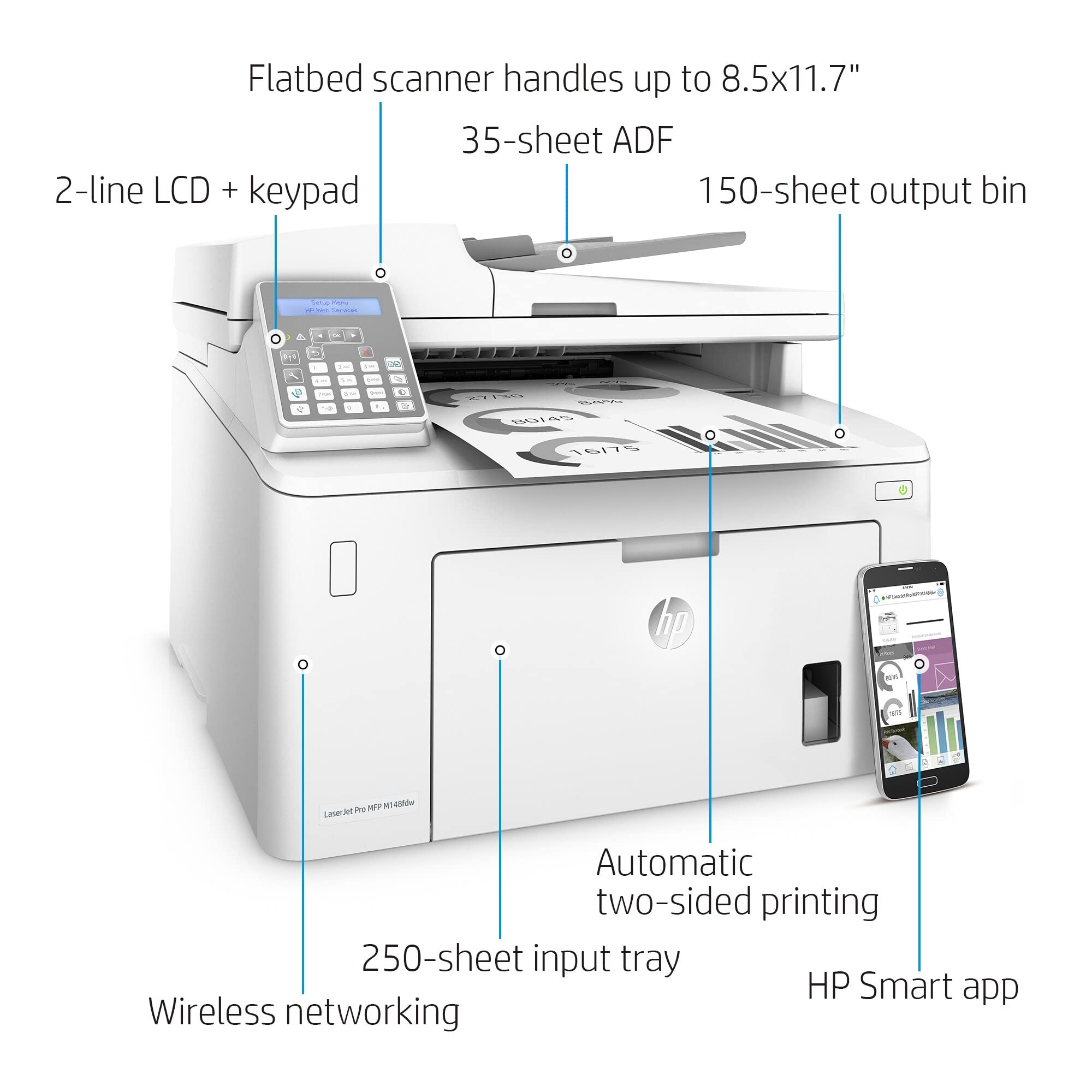
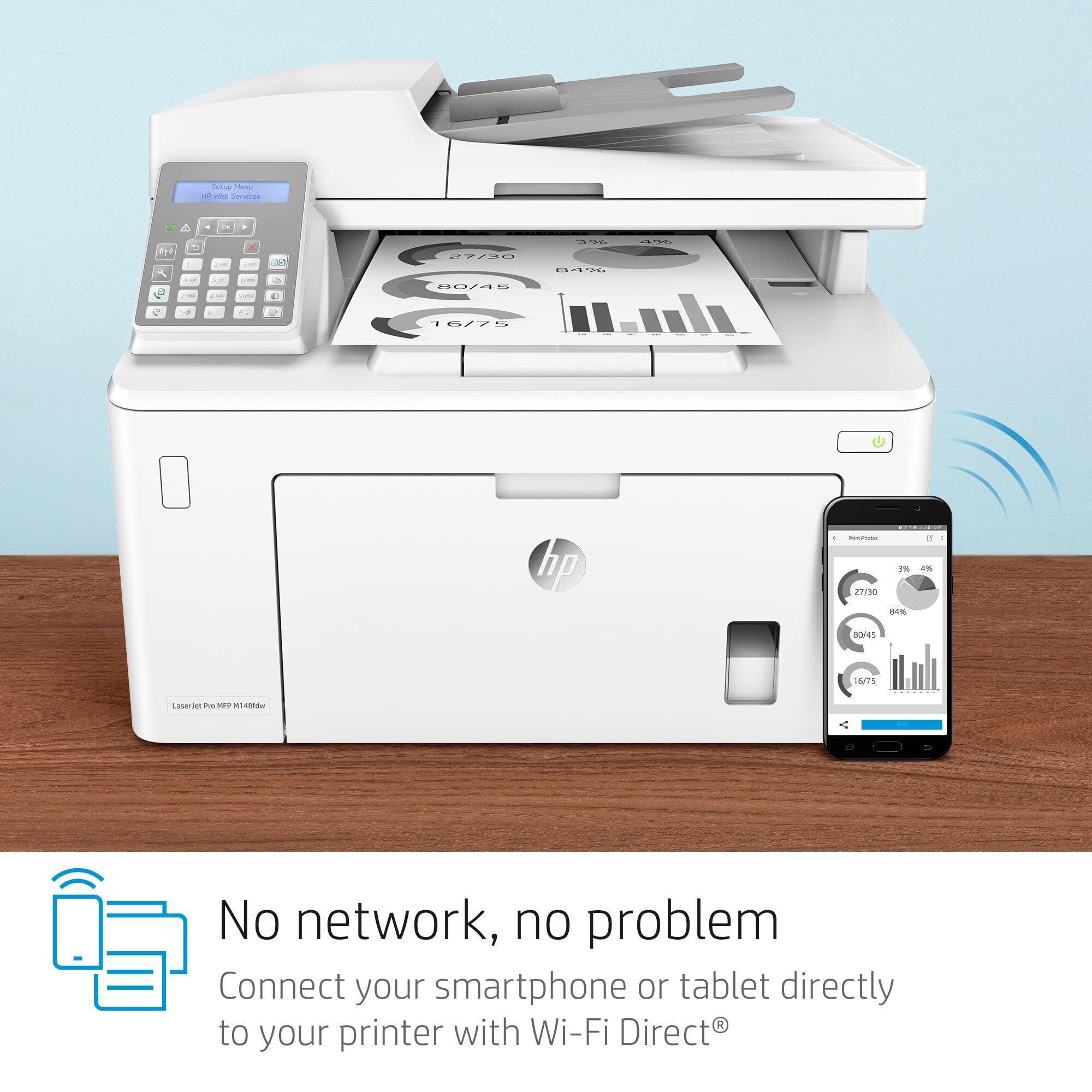
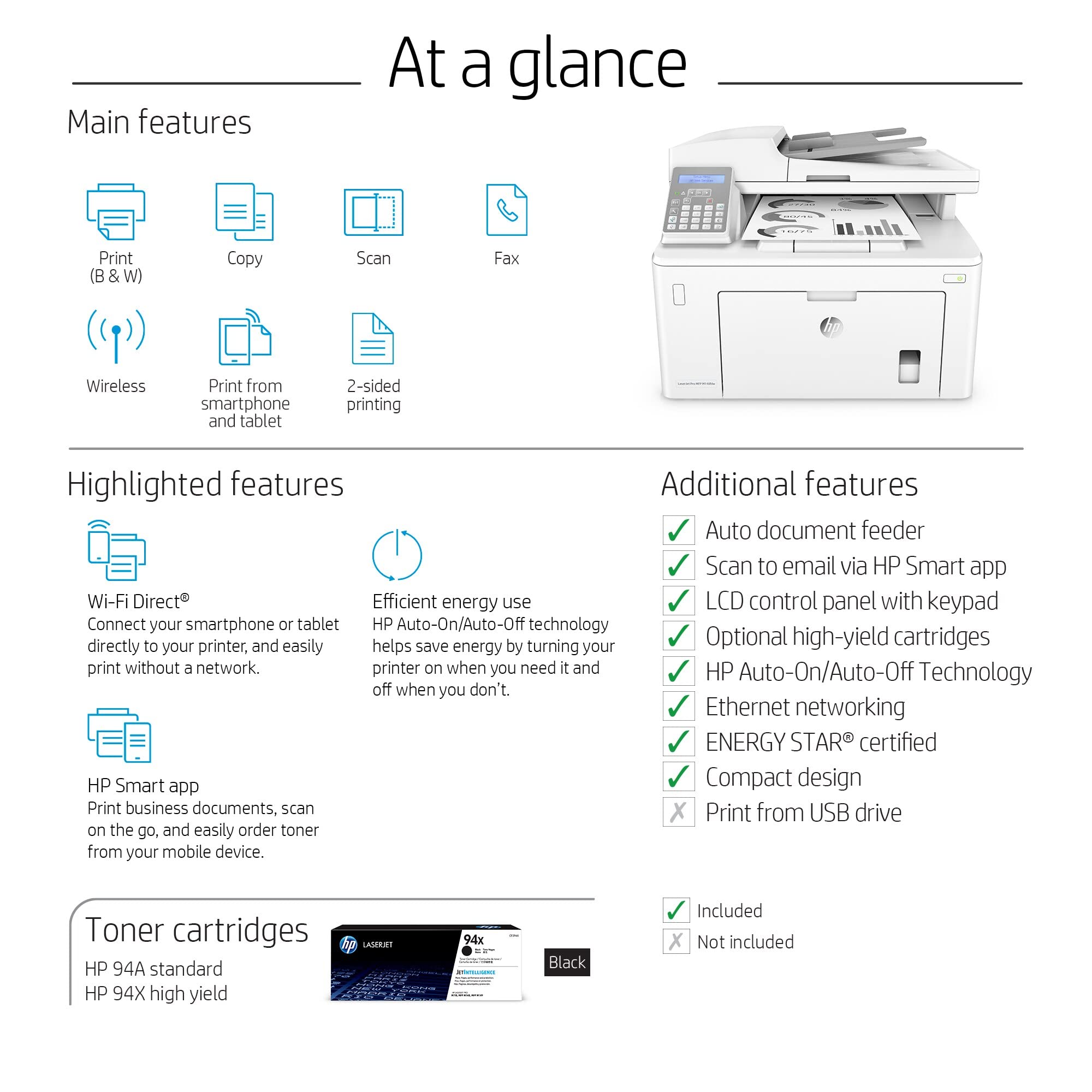
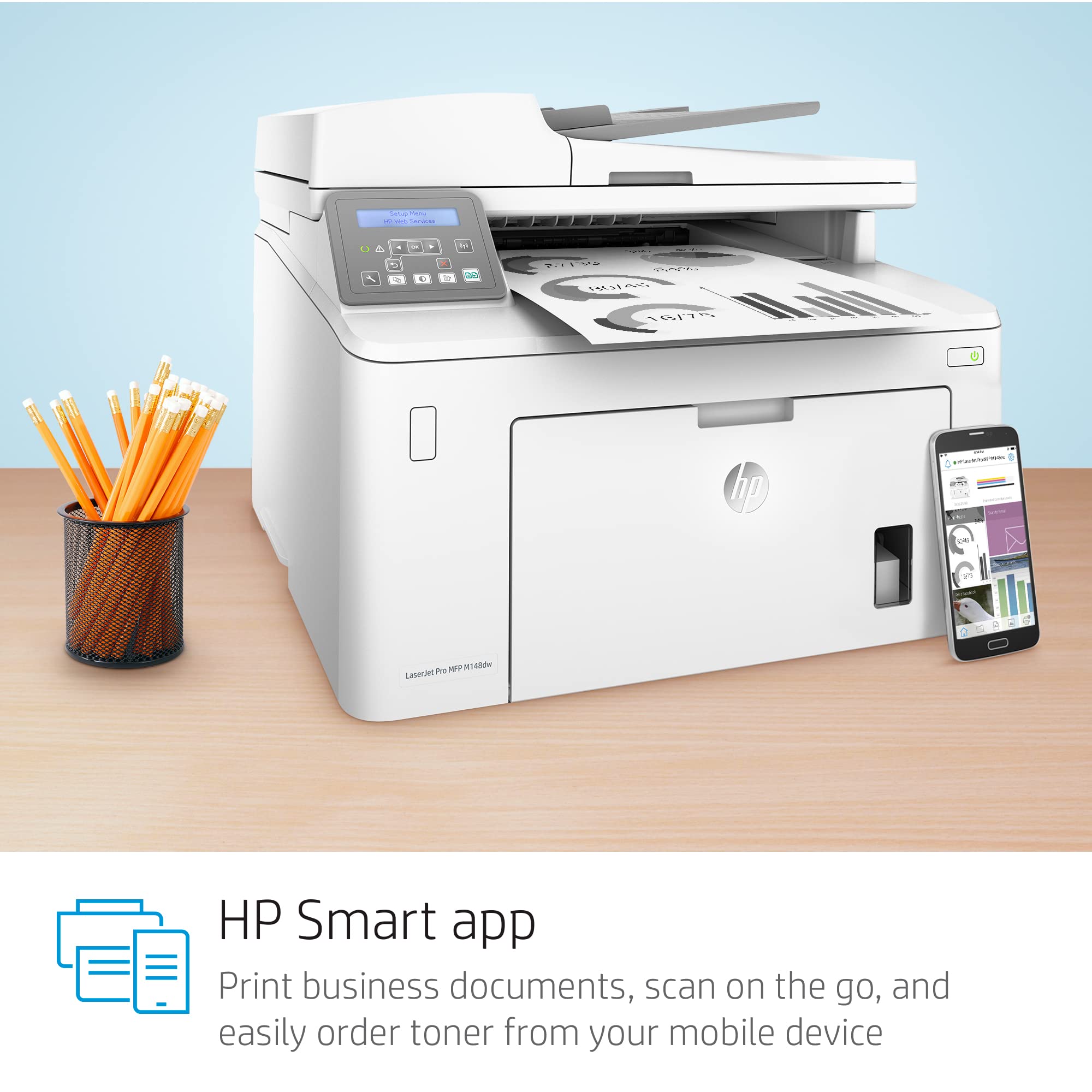
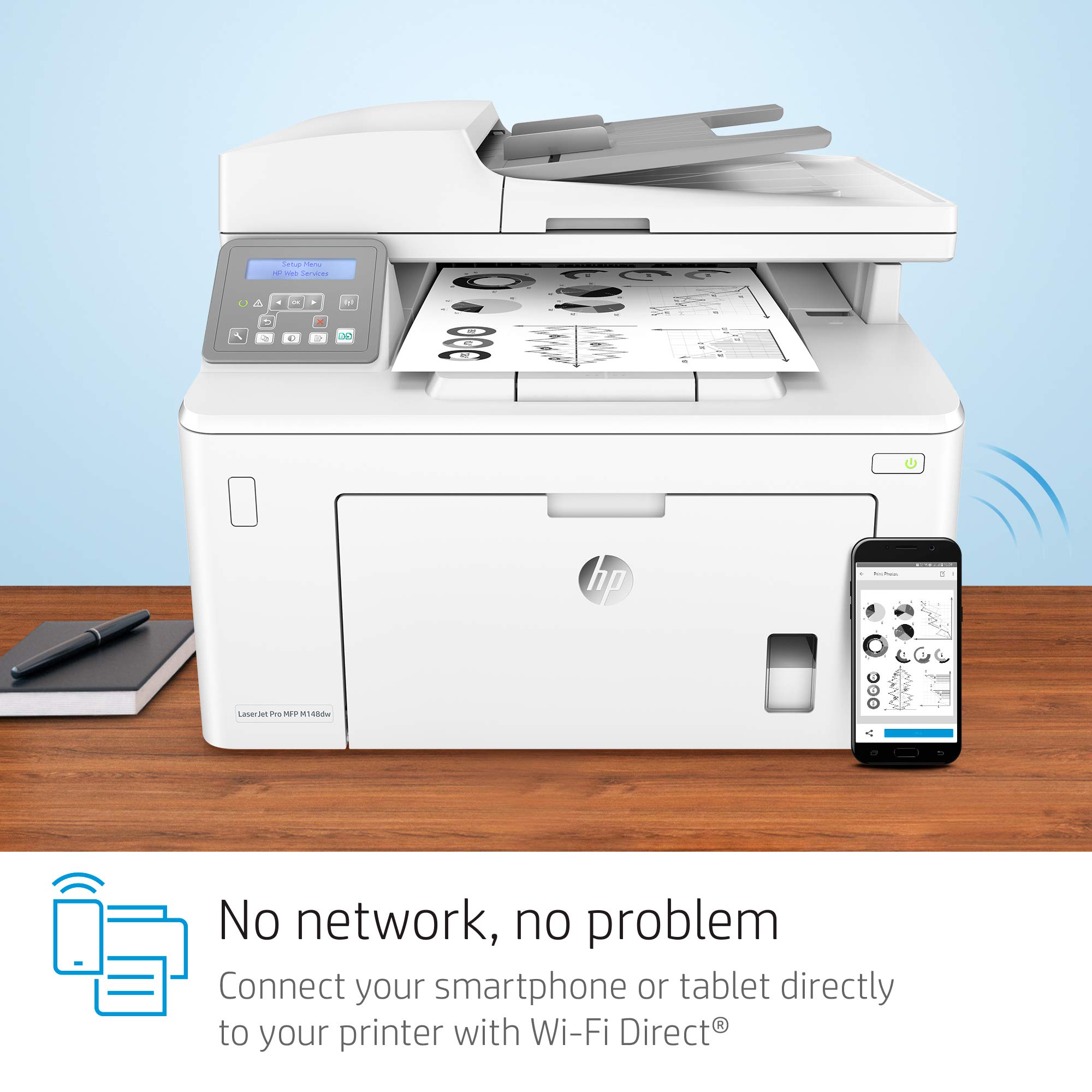
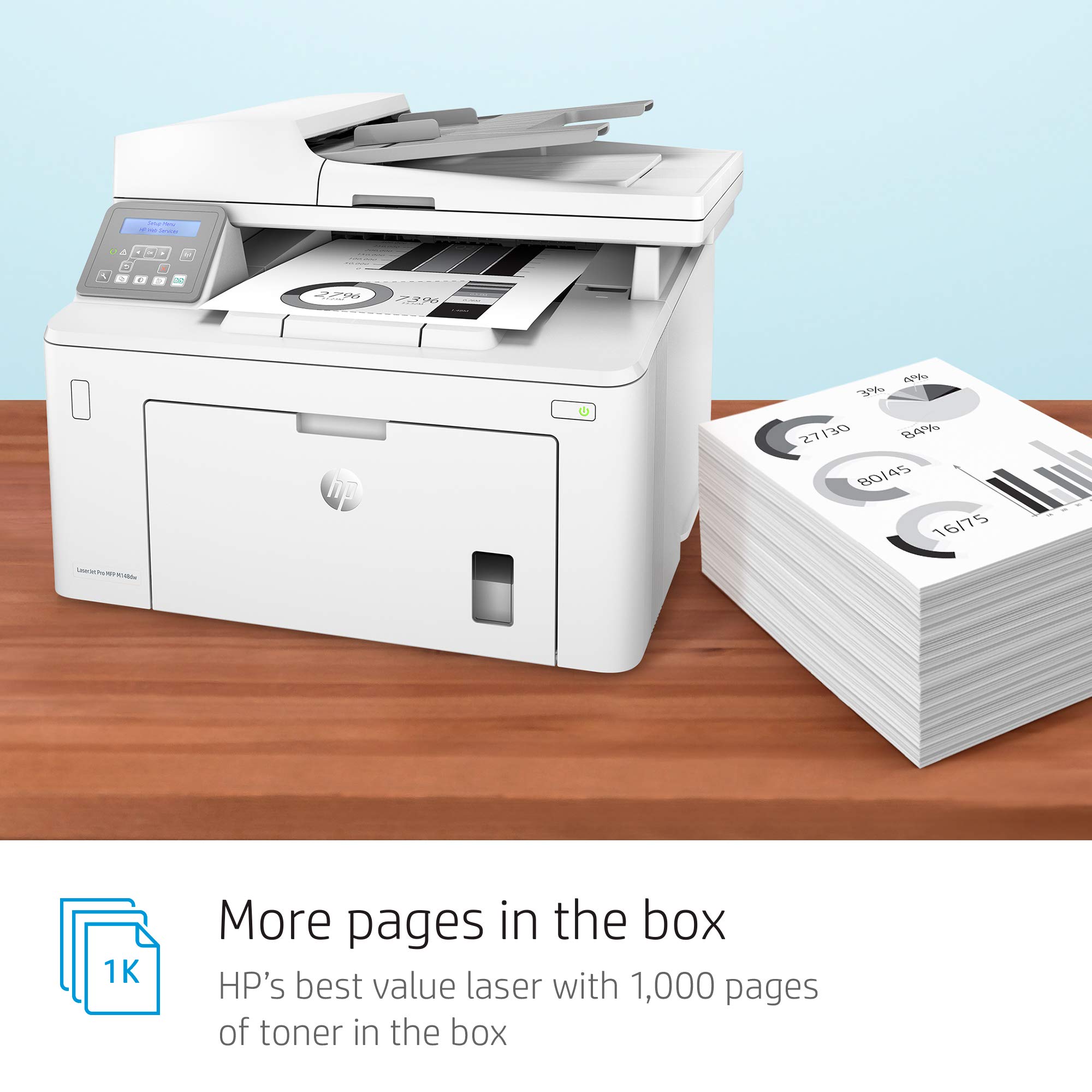
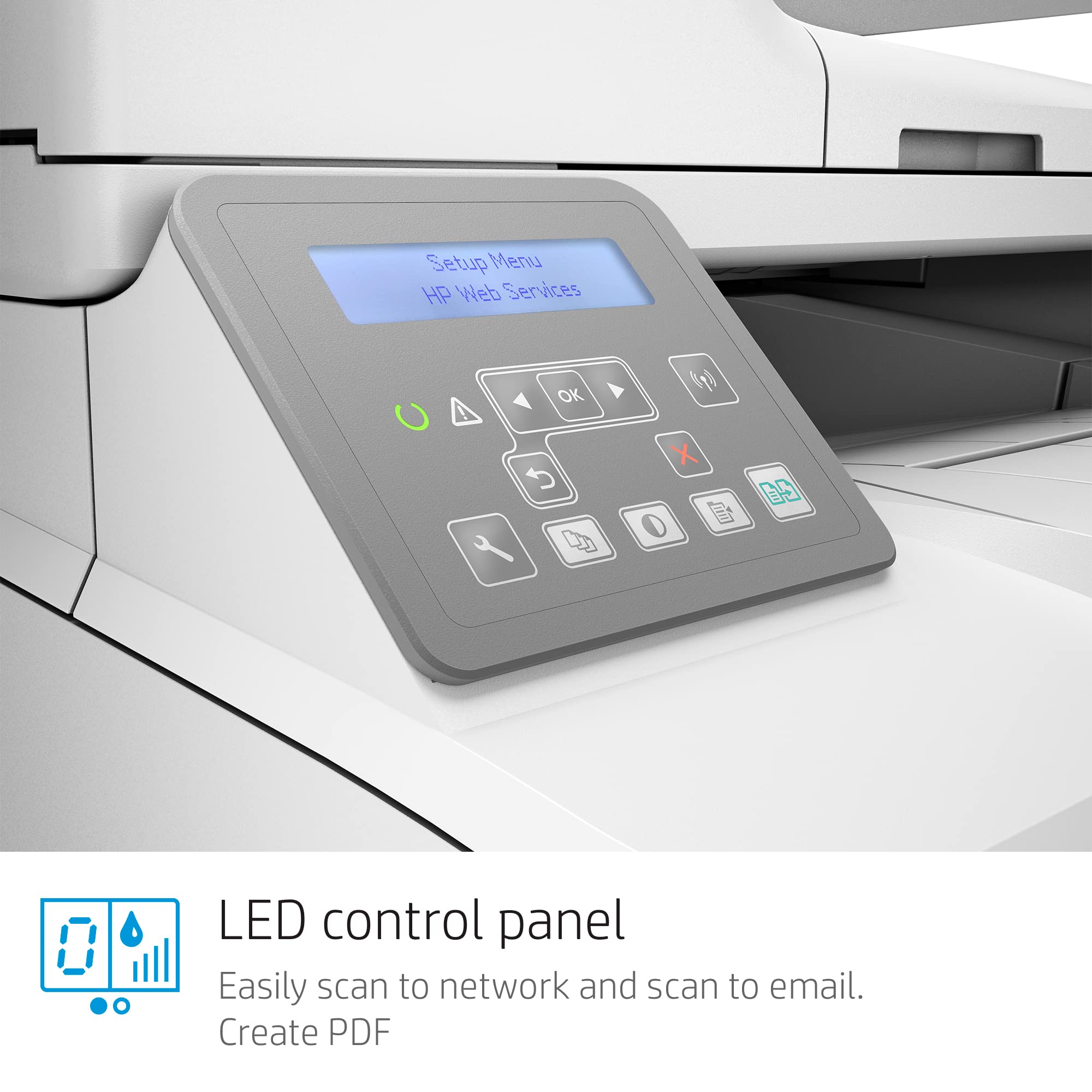
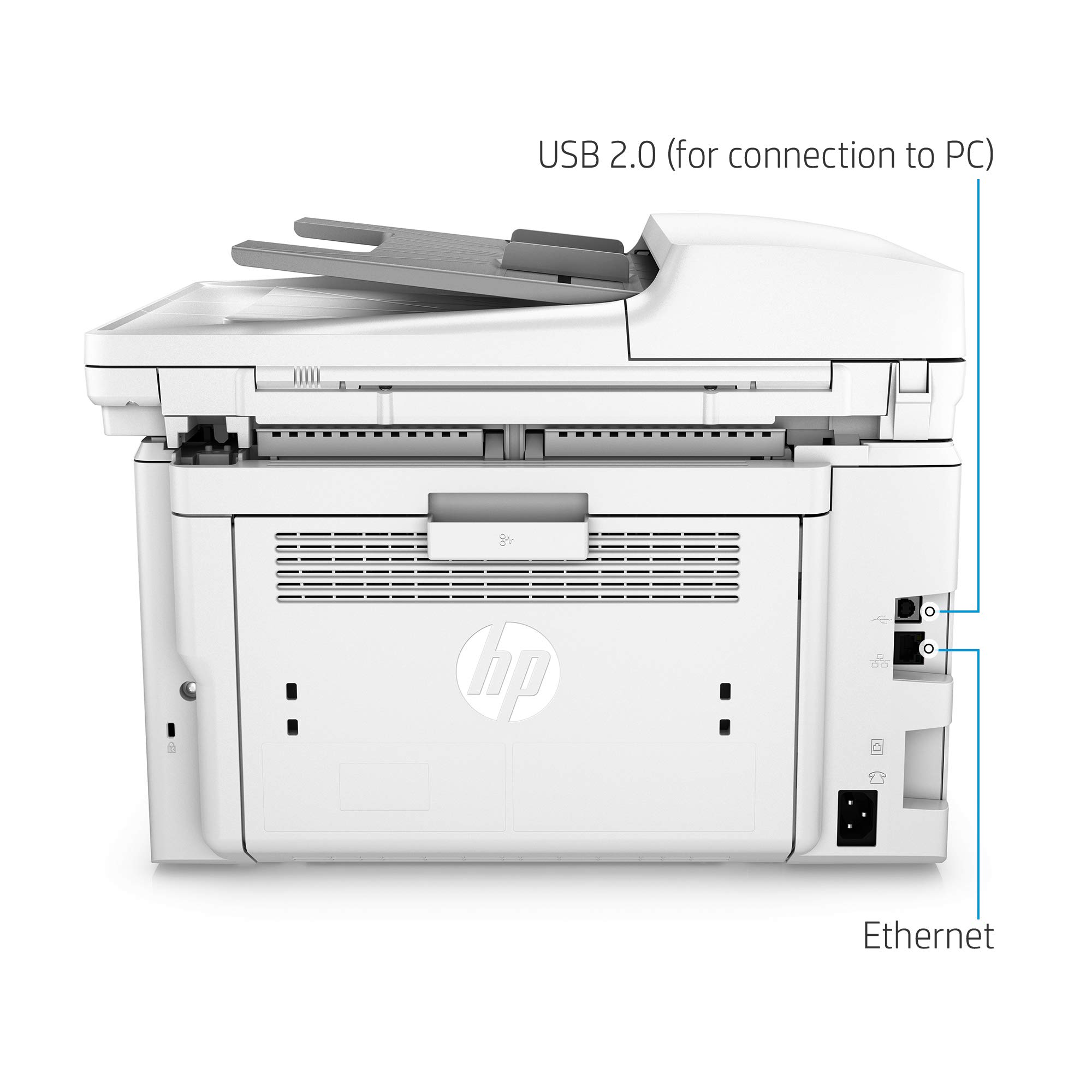
🚀 Elevate Your Office Game with HP's All-in-One Wonder!
The HP LaserJet Pro M148fdw is a versatile all-in-one monochrome laser printer that offers high-quality printing, scanning, copying, and faxing. With features like automatic two-sided printing, a 250-sheet input tray, and fast print speeds of up to 30 pages per minute, it’s designed for efficiency. The printer supports mobile printing through the HP Smart app and voice-activated commands, ensuring seamless connectivity. Plus, it comes with a one-year limited warranty and 24/7 support.


M**7
Great Laser Printer - Connection Tip
This printer/scanner has worked great for me during isolation due to Covid. I am a teacher and was able to scan in color assignments for my student as I taught online from March-June 2019. Print quality is also excellent, just in black and white, of course.The fax machine feature is worthless unless you have an old-style wired home phone line -- even a digital home phone service through your cable company will not work, and most people use cell phones only these days. I only purchased the model with fax included because it was cheaper than the other model, and that didn't make sense to me, but here's what I learned:The model WITHOUT the useless fax included is probably more expensive because it includes a touchscreen display on the printer. This will be very helpful if you have any problems with connectivity and need to troubleshoot or reset your printer. I have had my printer become disconnected from my wiFi network twice now, and it has been a complete NIGHTMARE trying to do research on the internet and figure out how to fix the problem. However, I think I finally figured it out the last time, after spending all day on mostly fruitless efforts:**If you are using a WiFi extender in your home, unplug it or turn it off whenever you are setting up your printer or trying to reconnect it to your wireless network. As soon as I unplugged my WiFi extender, the blue WiFi light on my printer stopped flashing and was again reconnected to the system. I wish I had been able to find this tip online somewhere before I'd tried literally everything else to fix my issue! Apparently, the printer can become confused because the extender and router both have the same network name. So just unplug the extender, let your printer reconnect, and then you can plug the extender back in and continue work as usual.
D**O
good print quality and prints fast
This printer was easy to install and works great. I don't print much but it wakes up and starts printing after ~ 5-10 seconds when it is in sleep mode.The only complaint which is minor is that the power light flashes and the network light is on constantly and they are both very bright. This is a distraction as the printer is near me when working. To address it, I put a couple of small labels over the lights which dimmed them. Minor issue and a great printer.
T**N
Our second purchase of this printer/scanner
Fairly simple to use. But often have to un-install and re-install when it refuses to print. May be our Internet carrier/system though. Wish it was easier to darken or enlarge print though.
X**G
Easy to setup if you kind of ignore HP's instructions, but NO push-button scan to email!
Man, HP printers really get a broad mix of reviews here. I'll try to summarize my experience, since I bought this MFP to replace a 24 year old HP 5P (its maximum print speed was either 5 or 6 pages per minute!) and technology has changed quite a bit since then.First, a basic description behind my rating. The printer, once setup, is really, really fast. It scans well, and printed text is clear and contrasty. I'm impressed with it as a printer.The downside to the product: there is no SMTP scan to email feature. HP's own technical specification claims there is, and Amazon's own product images shows a checkbox next to scan to email, but it's genuinely *not there*. HP's Embedded Web Services should have an option for it, and it's not there.So I took off one star. It doesn't mean scanning isn't possible. It just means you have to be at a computer with some sort of scan software running to scan. Note: scan software comes with Mac OS and with Windows, so it's not a matter of needing difficult-to-use software -- it's strictly a matter of push-button convenience.Apart from this, the printer is fairly sleek, and it's not too loud for a laser printer. I think 4 / 5 stars is warranted, pending long-term reliability. Remember my 24 year old printer? We'll see how this one does.Second: installation, which seems to be a sticking point in the reviews below.Let me start by saying that the printer is NOT so smart that you can just turn it on, select a WiFi network from its display, and voila, you have a printer / scanner / fax on every computer. *Some* setup is needed if you want the device to show up wirelessly. The good news: it's not too difficult. The bad news: HP's instructions are a little iffy.If you just want a USB printer, just plug in the included USB cable to your computer, and any Windows machine will recognize the device and download the necessary drivers for it. As a wired printer, you don't need to follow any of HP's setup instructions. Using Windows 10, which has a built-in scan app, you can hit the ground running even with the scanner with no confusion.If, however, you want to use the printer on your local Wi-Fi network, I think you'll have to install HP's "HP Easy Start" software. (If someone else has another way, feel free to comment on this review.) This is step 6 in HP's "Getting Started" guide, but in Step 5, small text says NOT to connect the USB cable to the printer until the software has been installed. Connecting the cable before HP's software is installed and running allows Windows to grab the driver and set up the printer before HP's Easy Start does, which might cause issues later on in the installation.Once that software is installed, it will guide you through step-by-step to getting the printer on the wireless network. Once it's connected to the network, the LED of the antenna button on the touch panel will be solid blue, and you can use any computer -- Mac or Windows -- to look for devices, and the printer will be there.Realistically, once the Easy Start software is installed, it can actually be uninstalled, since the wireless settings will be written to the printer during the Easy Start setup process (via the USB cable, which the installation prompts you to plug in at the right moment). I've printed and scanned documents now from two computers, neither of which have HP Easy Start on them, as well as the computer that I originally installed Easy Start from, with no issues. I uninstalled Easy Start on the original computer I used to communicate with the printer and it can still print and scan via wireless.So, in all reality, it shouldn't be too difficult to set up the printer, even though HP's instructions are a bit of a nightmare. The main reason to go through their steps is to get the printer on the wireless network. They should read:Step 1: plug in printer to wall outletStep 2: wait for printer to initializeStep 3: install HP Easy Start via the URL provided in the Setup GuideStep 4: run the software and follow it through*----Step 4 is really the last one to get the printer on wireless. The next steps aren't really different from any printer installation of any sort.----Step 5: uninstall Easy Start if you preferStep 6: if you have other computers, add the printer per that operating system's normal instructions. If you're on wireless, the printer will have a complicated network name alongside its model name (M148xyz).Step 7, if needed: HP Easy Start does offer the choice to install about 300 MB of additional software, such as OCR (optical character recognition) software. It's the "full software installation" option during the installation process.Once installed, to print, simply select the printer. To scan, either open the Scan app (Windows 10) or search Spotlight for "scan" (Mac OS). The appropriate app will allow you to choose a scan filetype (e.g. PDF, PNG, TIFF, etc) and scan resolution. You can then process this file as you need to -- email, print, save, etc. HP Easy Start has some additional options that you* note that HP Easy Start includes two default settings that allow HP to monitor what the printer is doing. You can disable these during the installation process. Read the description of each service reporting data to HP and decide for yourself if you want the data to be collected and provided.
Trustpilot
1 week ago
1 month ago