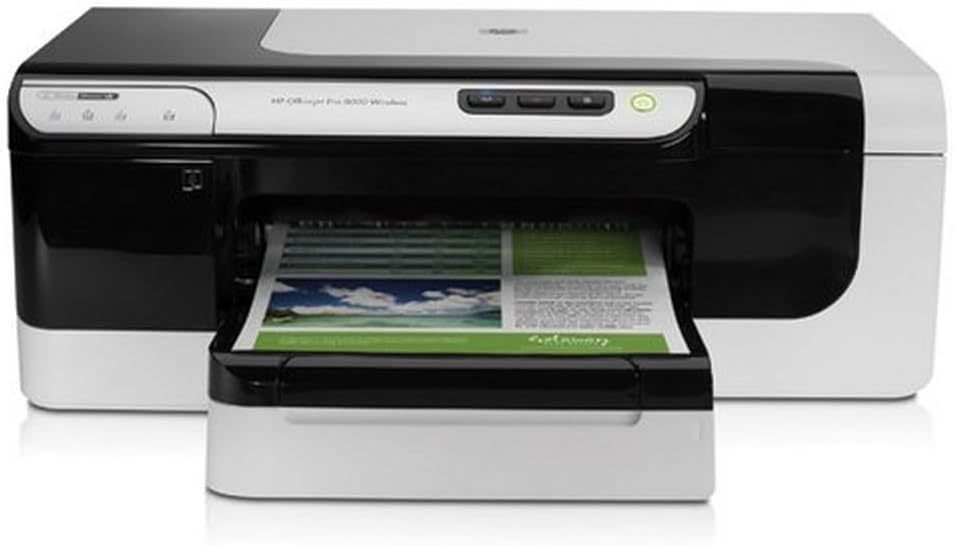

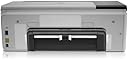

HP Officejet Pro 8000 Wireless Printer
Product ID: 1084175
⚡15 ppm Black Speed
🌈11 ppm Color Speed
📡WiFi 802.11g/b
🚀 Elevate Your Office Game with HP Officejet Pro!
The HP Officejet Pro 8000 Wireless Printer delivers high-quality laser-like prints at impressive speeds, featuring versatile connectivity options and eco-friendly automatic two-sided printing, making it an essential tool for any modern office.
| ASIN | B001PO6IL0 |
| Additional Printer Functions | All In One |
| B&W Pages per Minute | 35 ppm |
| Brand | HP |
| Built-In Media | Ink Cartridges, Power Cable, User Manual |
| Color Depth | > 8 bpp |
| Color Pages per Minute | 34 ppm |
| Compatible Devices | Laptops |
| Connectivity Technology | Wireless;USB |
| Control Method | Remote |
| Controller Type | Remote (USB) |
| Customer Reviews | 3.1 out of 5 stars 179 Reviews |
| Dual-sided printing | Yes |
| Duplex | Automatic |
| Global Trade Identification Number | 00884420405221, 00884420665106 |
| Hardware Interface | USB |
| Ink Color | black, cyan, magenta, yellow |
| Item Weight | 24.92 Pounds |
| Manufacturer | HP |
| Maximum Copy Resolution Black and White | 1200 dpi |
| Maximum Copy Resolution Color | 1200 x 1200 |
| Maximum Copy Speed Black and White | 35 ppm |
| Maximum Media Size | 8.5 x 14 inch |
| Maximum Print Speed (Color) | 34 ppm |
| Maximum Sheet Capacity | 250 |
| Model Name | 8000 |
| Model Number | C9297A#B1H |
| Model Series | OfficeJet Pro |
| Number of Trays | 2 |
| Output sheet capacity | 150 |
| Paper Size | 3 inch x 5 Inches, 8.5 inch x 11 Inches, 8.5 inch x 14 Inches |
| Print media | Glossy photo paper |
| Printer Connectivity Type | Wireless;USB |
| Printer Output | Color |
| Printer Output Type | Color |
| Printer Type | Laser |
| Printing Technology | Laser |
| Processor Count | 1 |
| Resolution | 1200 x 1200 |
| Scanner Type | Automatic Document Feeder (ADF) |
| Specific Uses For Product | Office |
| Total Usb Ports | 1 |
| UPC | 884420665106 884420405221 |
| Unit Count | 1.0 Count |
| Warranty Type | limited warranty |
K**R
Excellent printer, but be careful with the setup
This printer replaced an at least 10 year old HP deskjet. My use is mainly printing in B&W draft mode, with occasional color pages or color photographs. Once it starts printing it goes blazingly fast, but it does take a little longer to start printing than most printers - a small liability to me. So far it has been very economical of ink. As other rating have shown, the B&W quality is excellent and the color quality is very good - good enough for me in printing photographs. While the setup was not very complicated, it did take a long time. But there is one thing to be aware of, which related to my setup and might relate to yours. I connected the printer via cable to my computer (desktop), but wireless to my wife's (desktop). My setup went smoothly, but to connect wirelessly one first has to connect the printer via a cable (supplied) to the wireless computer. After setup is complete, one disconnects the cable and the wireless connection works very well. However, I didn't know about the cable to the wireless computer. So after setting up the printer to my computer, I had to disconnect all the wiring, move the printer to near the wireless computer, then do the wireless installation, disconnect the printer, move it back to near my computer, and rewire it (no new setup needed). Of course, if the wireless computer had been a laptop there would not have been any issues. Overall I am extremely pleased with this printer's performance and would recommend it to anyone.
P**R
Required duplexer makes for akward placement, wireless difficult
I am an IT professional and work on equipment like this everyday. I was replacing a Dell P720 so just looking for a basic printer that would look nice in the desk area by eliminating cords. Well, the price was nice and shipment from Amazon good. The machine comes with TONS of print cartridges and was easy to put together. The main negative for me was there is a horribly placed "duplexer" in back that you MUST have plugged in at all times or print jobs will fail. This thing sticks out about 5 inches from the back of the printer, so you will never be able to place this machine flush against a wall. For me this was bad as it just doesn't look as nice as one that would sit in a corner flush to a wall. Secondly, the wireless. Good and bad news. Bad news = I spent about 90 minutes trying to get the stupid HP software to set up my wireless for me but it kept failing with indecipherable errors. I was about to give up and return it when I decided to delete the HP set up and just set it up through Windows default printer set-up. Doing it this way, the wireless works perfectly. Thinking I fixed it, I tried the HP software again, and it still was failing and would break the wireless. SO, I gave up on the HP software and just did it through Windows and have left it alone and it works just fine. Bottom line, don't bother with the HP software and do it through Windows if you are doing wireless. Printing is much quieter than my old printer, quality is good, and it looks nice. However, I wouldn't buy it given a second chance due to the inability to sit flush on a wall and the goofy HP software. One other tip, through the end of the year, HP is doing a "Trade up and Save" rebate where you can get $50 back on this printer just by mailing back your old printer (doesn't even have to be working AND they give you a pre-paid label).
B**K
Not for me (and Mac users take note...)
I tried two of these. The first one had defective print heads. I had only printed out about ten pages when I first noticed issues in two of the test patterns on the Print Quality Diagnostics Page. HP phone support person was friendly and patient, but in retrospect it shouldn't have taken an hour of running the same two cleaning routines before she declared it defective. This was a huge waste of my time, not to mention paper and ink. HP offered to send new print heads, which were back ordered. Instead, I returned it to Amazon for a replacement (though the printer was back ordered too). When I first noticed the print problem, it was the weekend, and I decided to try email support and then call phone support on Monday just to cover my bases. It took them several days to reply to the email, and not only did the tech guy not answer my very-clearly-worded question, but he recommended cleaning the print heads manually - on a brand new, hardly-used printer. I think he was way off because neither the PDF manual, online support documents, or phone support person ever suggested this. The print heads seemed OK on the replacement printer, but the bottom was getting cut off of a document I was printing - a promotional flyer with text on a colored background with a 1/4" margin all around. The first time I called HP, the Mac support person said it was surely a problem with the document and never considered that it could be a printer limitation. So I spent hours checking and rechecking print settings, doing test prints of the PDF from Adobe Reader and from Apple's Preview, as well as from the original document in Apple's Pages app. I even re-made the flyer from a blank template in Pages in case I'd made some kind of formatting error (I hadn't). Eventually, I found the answer tucked away in the Officejet 8000 Pro's PDF manual - which, by the way, seemed hastily written and poorly organized. I discovered that while Windows users can have a minimum margin of 3.3 mm all around a letter-sized document, for users of Mac OS X, the minimum BOTTOM margin for all media (except envelopes, and, according to the manual, Hagaki and Ofuku Hagaki, whatever they are) is .47 inch (12 mm). So, since I'm a Mac user, I'd have to re-design the flyer to adjust to this limitation. (Borderless printing was only available for photo paper). This little nugget of info was absent in the specifications page at the HP web site. And it's easy to miss if you view the User Guide PDF in single-page mode: The table showing minimum margin specs is at the bottom of page 21, but there's no footnote or asterisk to warn you there are exceptions on the next page. I called HP today to verify that the manual - not the web specs - was correct, and the support person said it was an inherent limitation to the part of the Mac OS printer software written by Apple. He said that ALL inkjet printers from ALL manufacturers have the same limitation in Mac OS. I found that hard to believe... So I checked the specs on an Epson printer - the Artisan 710 - and they said that the 3 mm minimum margin all-around was the same for both Mac and PC. I called Epson's sales department and tech support department and they confirmed this. I emailed the PDF of my document to a Mac-user graphic artist friend who has an Epson Stylus Photo and when she printed it out, the bottom wasn't cut off. So HP was just wrong about it being an inherent limitation in Mac OS X. Yes, I could just redesign the flyer with bigger margins, but at this point, I'm fed up with HP. PROS: If you don't mind the margin limitations, or you're on the Windows platform, you don't need to print photos, and you don't get a lemon, then the Officejet Pro 8000 is probably a pretty good printer. I had no problem with the quality of prints from Sibelius (music notation) and text documents, and it was fast. As of this writing, neither Canon nor Epson offers a comparable single-function inkjet with automatic duplexing and wireless connectivity. CONS: Margin limitation on the Mac (see above); manual is poorly written; tech support was exasperating; questionable quality control, at least in my experience. Setup went smoothly with the first one, but with the replacement, the HP Setup Assistant told me that my wireless password had been accepted, but then the printer failed to connect. After retrying several times, I eventually figured out that in fact I'd entered the wrong password, so it seems that the HP setup software is flaky - it can tell you the password was accepted when it wasn't. UPDATE 5/20/10: I decided what the heck, I'll send a message to HP's president through their web site, describing my exasperating experience. The next day I received a phone call from a woman named Pat at HP. The usual corporate apologies, spoken in a monotone, sounded like she was reading a script - which she quite possibly was. I started to explain my issue, and she stopped me and asked if I'd returned the printer, as advised by their support rep. I said yes, I had, but that's not the whole picture. I tried again to tell my story, and she interrupted and said, in a brusque tone, 'your comments have been forwarded to the appropriate parties'. It seemed as if her job involved following a flow chart: Did customer follow support recommendations? If yes: read 'thank you' boilerplate and end call. Might as well have been a robo-call. Unfortunately, there are few options out there if you want a single-function printer for the Mac OS that does automatic duplex, wireless, and focuses on document rather than photo printing. I tried a Canon i4700, and even though I'd only paid $35 for it on sale at Fry's, I returned it: The Canon's quality for text and color illustrations was worse than my 10-year-old HP Deskjet 970Cse, which still works fine but is slow. I bit the bullet and bought a new cartridge for the old HP to hold me over.
B**B
HP Office Jet Pro 8000 Wireless
I've had this printer running for a little over a month now and have no complaints. The only problem encountered was that the print-head hold down lever took more force than expected to lock down. Once I figured that out, the setup for both the printer and the wireless went without a hitch. It is a little noisy, but it's in another room, so that is not an issue for me. If I'm printing a single page, it is usually in the output tray before I walk into the room. This printer was on sale at Costco and I almost ordered from them, but they said the printer was out of stock. I searched it on Amazon and found it for $10 cheaper. After 2 years, it's still going strong. It has been used on wireless since day 1. I'm on my 3rd XL black cartridge and my second set of color cartridges. Originally it was installed on an XP system and the move from that to Windows 7 was no problem. The only problem I've had is that about once every couple of months, the printer appears to be dead and the light on the power cube is out. Cycling power corrects the problem. I've never had it take more than a couple of minutes to initialize after being turned off or power failures. In 2010, I bought this for under $100 and it has been the best printer I've owned. Update: I paid less than $100 for this printer in 2010, so I guess I got my money's worth. I had a problem with a leaking magenta cartridge, (HP, not a compatible) which apparently shorted something out. I did a temporary fix which lasted another 8 months, but now I get a flashing light on two of the cartridges even after I put new ones in. I'm all done with ink jets. I'm all done with HP. The cartridges have become too expensive over the years and now a new set costs much more than what I paid for the printer. If I had paid what the printer is going for now, I would be really upset. I had a Panasonic KXP-4055 (Laser) for 9 years and that machine outlasted the compatible market for consumables. I retired that one when I could no longer find a replacement drum. I think those days are long gone in the printer industry.
D**E
Printer's good, but true initial cost is higher than you might think.
The printer works well. Wireless is a big help at my house. Now we don't need the desktop to be on to print from the laptops. Wireless connections to Vista and W7 have been easy and trouble free. The XP machine initial install was easy, but it and the printer lose track of each other occasionally. Duplex printing is a big help for my use. It's a bit slow, as the printer has to wait for ink on the first side to dry before reversing the page. So not good for high volume. MUCH nice for my low volume use than printing alternate pages, flipping them over, putting back in the paper tray of LaserJet 1000 and printing the other sides. The cheap part is the almost empty cartridges that come with it. Black ink went out at 149 pages, just low coverage text, and the color carts are half empty after almost no color printing. An excerpt from my support chat with HP: "149 is both the total pages printed on the printer since new and the number printed with the original cartridge that came with it. I have not replaced any cartridges. -- Summer S says: I would like to inform you that the printer is shipped with the host cartridges and host cartridges are not filled completely. These cartridges are partially filled and used just to initialize the printer. So, the black cartridge is out of ink and it needs to be replaced now. Moose says: Is this true of the color carts, too? -- Summer S says: Yes for color cartridges as well." So figure an additional $100 for a set of the high capacity, XL cartridges, or $85 for XL black and regular capacity color.
E**N
HP OfficeJet Pro 8000
After reading earlier reviews, I expected the setup to be difficult. Not so! I should say I have an iMac. While the process took some time, it went without a hitch. I had some concern about speed of printing initially. I found that leaving the printer on all the time and having it go automatically into sleep when not being used saved several minutes of noisy initializing every time I wanted to print. Wired and wireless access works flawlessly. Quality of print, both text and colored pictures, is superb. As advertised, the printer seems to use considerably less ink than other inkjets I've used over many years. I have yet to replace the original cartridges after several months of frequent use. Of course, this is completely dependent on how much you print. The only problem I've had has to do with the feed of photo paper. If the paper is at all curved (as it often is) it will misfeed and/or tear. Not a fault of the printer, per se, but I now manually help the feed with curved photo paper. Overall, easy to set up, easy to use, very reliable, and a high quality product. Glad I bought it.
C**N
3 stars because I'm anticipating the worst
This is replacing an older HP model, the 550. I would love to be able to give this printer a higher rating, it deserves it to be honest...print quality suits our needs, it is quieter than our old one, was easy to setup on a wired network...BUT I am worried about how much ink it is going to go through. Our last HP went through ink rather quickly but although it turned on the low ink warning light it would let you continue printing pretty much to the last drop. From some of the reviews here it seems that this is no longer the case, when it advises you that your ink is low it will stop printing. We have only been using it for about 3 weeks so we are not near the replace ink issue yet but it is a concern.
3**R
FRAUDULENT PRODUCT DESIGN, DECEPTIVE BUSINESS PRACTICES, NON-EXISTENT SUPPORT.
If you check out any of my many other reviews, you’ll see that not one takes the tone of this one. I’m a business-school professor of 25 years’ service. I intend to make Hewlett-Packard a case in my classroom, and potentially publish an ethics case concerning its printer line. But for the moment, I agree with the general theme: NEVER BUY A HEWLETT-PACKARD PRINTER EVER AGAIN. Let’s go further: NEVER BUY AN HP ANYTHING EVER. I bought this color printer because an old acquaintance was sentenced to a 10-year federal sentence for white-collar crime (true story, and yeah he was probably guilty as charged) and I wanted to send him cheerful twice-weekly letters with pics of art etc. Guess what? When you get sent to the slam, pretty much nobody even writes to you. Printer did produce pretty good pics. But then this. 1) The color register went out on the printer, and the diagnostics simply could not be located and loaded, so effectively it no longer functions as a color printer and I gave up on that, after many hours of effort. I give myself a B+ when it comes to this kind of stuff, but no luck here. No luck with Windows 7 Enterprise, no luck with latest OSX. Worse, much worse 2) the printer continually tells me that one or another of my color cartridge's ink is empty—EVEN THOUGH I’M NOT USING THEM, AND THEY ARE SOLID INK CARTRIDGES—and when that’s true, the printer stops printing EVEN IN BLACK AND WHITE, until you replace the supposedly empty color ink cell. These, of course, are costly. Somebody suggested pulling the cartridge out and reloading it, which I’ll try, but I’d have to agree that this HP printer’s configuration VERGES ON FRAUD. The cartridges appear to “time out” or otherwise deceive the user into believing it’s time to buy a new one. However, I’m proof positive that something is very wrong here, having not used this for any color printing in half a year, but being prompted now to replace the color cartridges. I own an HP monitor which is tops, but I WILL NEVER BUY ANOTHER HP PRODUCT. Also critical: I queried HP customer support on both the issues noted above, and never received replies, or even acknowledgment of the queries. ABYSMALLY BAD PRODUCT, WRETCHED CUSTOMER SUPPORT, FRAUDULENT BUSINESS PRACTICES. Do you need to hear anything else? I just bought a Canon copier, even though I’m holding two of the HP ink cartridges. Again, FRAUDULENT BUSINESS PRACTICES: A DEVICE ENGINEERED TO DUPE THE CUSTOMER INTO BUYING CARTRIDGES EVEN WHEN THESE ARE NOT NEEDED. HP, here comes a business case: “Hewlett-Packard Products: A Case in Customer Deception.” UPDATE: This was to me an interesting review. Almost every reputable company will respond to a review that contains allegations of this type, but HP did not. My bona fides are 100% true. I am a business-school professor, and everything I've said about this printer is correct. It clearly is designed, and deliberately designed, to defraud the customer into buying ink cartridges when it is not necessary to do so. I can only assume that HP has been advised by its general counsel not to make public statements concerning this issue. However, I do want to urge all readers of this review NOT TO BUY ANY HP PRODUCT UNDER ANY CIRCUMSTANCES. I know I won't. There's a lot of competition out there, and no reason to favor a company that "defrauds by design."
Trustpilot
4 days ago
1 month ago