Buy anything from 5,000+ international stores. One checkout price. No surprise fees. Join 2M+ shoppers on Desertcart.
Desertcart purchases this item on your behalf and handles shipping, customs, and support to New Zealand.
🚀 Unlock triple-screen power and fast charging — your desk’s new command center!
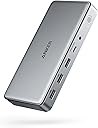
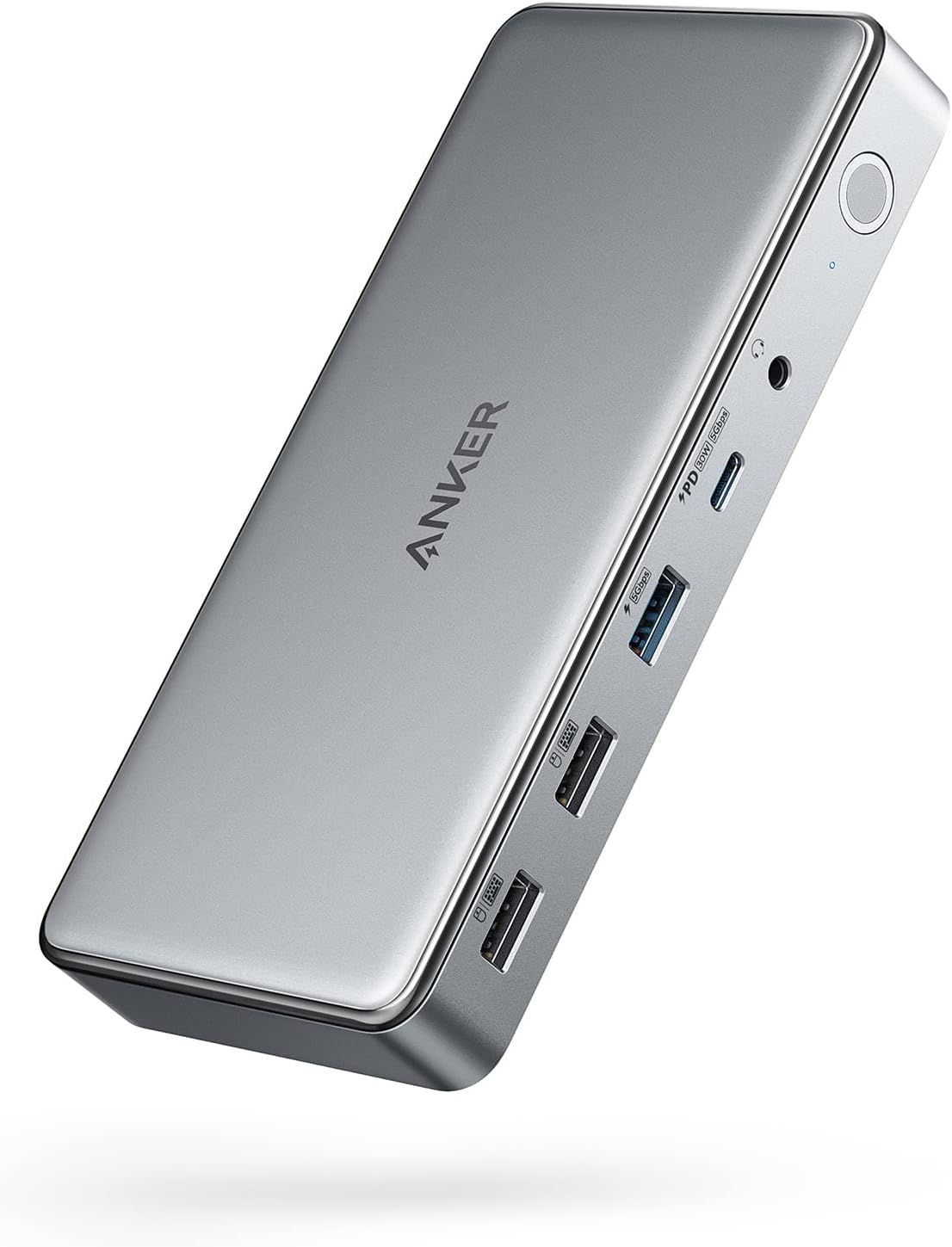
The Anker DL6350 Docking Station is a 10-port USB-C hub designed for professionals seeking to expand connectivity and productivity. It supports dual HDMI and DisplayPort outputs for triple display setups (up to 4K@30Hz and 1080p@60Hz), delivers up to 100W power delivery for fast laptop charging, and offers high-speed data transfer up to 5 Gbps. Compatible with Windows and Mac laptops, it requires DisplayLink software for full multi-monitor functionality, making it a premium, versatile docking solution for modern workspaces.


| ASIN | B09XH3PD25 |
| Best Sellers Rank | #148 in Computers & Accessories ( See Top 100 in Computers & Accessories ) #19 in Laptop Docking Stations |
| Brand | Anker |
| Color | Gray |
| Compatible Devices | Lenovo ThinkPad,Dell XPS,Microsoft Surface,HP Spectre,MacBook Pro 13,MacBook Air 2020 |
| Customer Reviews | 4.0 out of 5 stars 710 Reviews |
| Hardware Interface | USB Type C |
| Item Dimensions L x W x H | 6.7"L x 3.15"W x 0.96"H |
| Manufacturer | Anker |
| Mfr Part Number | A83951A1 |
| Model Number | A83951A1 |
| Number of Ports | 10 |
| Product Dimensions | 6.7"L x 3.15"W x 0.96"H |
| Smart Home Compatibility | Not Smart Home Compatible |
| Total Number of HDMI Ports | 2 |
| Total USB Ports | 10 |
| Total Usb Ports | 10 |
| UPC | 194644099756 194644099909 |
| Warranty Description | 18 month |
| Wattage | 100.0 |
B**.
works for me!
I am using a M5 MBA on the latest software. This is the first time I had a docking station that worked with my two external monitors. I have always had a 34" Ultrawide and a 24" regular monitor(that I turn in 180 degrees so I can access more up/down). I had been looking for a solution for 2 external monitors and couldn't find one until now. This dock is super fancy and expensive but it's worth it because it works. When I first got the dock, I was using both HDMI ports and one monitor was working but the other monitor wasn't working. I initially thought immediately about returning the dock because it was so expensive and then I tried using the DP port and into my HDMI and it worked. I guess I bought the wrong cable so I bought the right one however, I did confirm that it worked perfectly. Please make sure you have the proper cables for your monitors before you return this and deem it incompatible because I'm telling you it works on both the M1 MBA and the M5 MBA but I don't know if it'll work previous versions however I don't see why not if you downloaded the Displaylink software. I have not tested this long term but it works for my needs so I'll give it a 5 star. My needs are super basic. 6/12/2026: so this dock kick butt. It works on the M1 MBA and the M5 MBA. Apple specs say you can’t use dual display monitors for the M1 but it works just fine with Display Link software. On the M5 it says you can’t use dual monitors only use 2 monitors in clam shell mode. I have tested the M1 MBA and it work just fine. The M5 can be used with 2 monitors and with the MBA opened at the same time so it’s like 3 screens. I don’t know if it’s because of the DL software or not. I would guess it has something to do with it. If I had know it’d work on my M1 I probably wouldn’t have bought the M5 MBA. See photo attached. It’s the M5 MBA. So for me it’s 5 stars. It does everything I want and I like the style because it’s futuristic. lol. It would be cool if it had a built in retractable cable that connects to your MacBook. That would be dope and super packable. So far, no issues with the dock however, it does not work unless DL app is downloaded because it uses your screen sharing feature and emulates the monitors. That being said, apps like Netflix, CrunchyRoll, Peacock, etc,.(mostly streaming services) won't work with DL because it's using a form of screen sharing/screen recording. If you're looking to watch Netflix using this dock then you'll need to download Google Chrome and go on Netflix with that after you go into the Chrome settings and turn off the "hardware acceleration" option. Once you turn that option off you'll be able to run Netflix with no issues but you'll need to use Chrome. Figured this out the hard way. FYI. Will not work on any laptops that doesn't have DL downloaded. I'm using a MBA M5 so this works well for what I need it for.
N**H
Powerful Dock for Triple Screens, Just Be Ready for Setup
I’m a big Anker fan and this docking station mostly lives up to what I expect from them. The biggest reason I bought it was to run triple screens off my Mac, and it actually delivers on that, which isn’t always easy to find. Once everything is up and running, it works great. Displays are stable, connection is solid, and it really cleans up my desk with a single cable setup. Build quality feels premium too, like most Anker stuff. The one downside is the driver situation. You do have to download and run software to get full functionality, which isn’t ideal. It’s not hard exactly, but it does add an extra step and I could see less techy people getting a little confused. I had to poke around a bit to get it all working right. After setup though, no real complaints. It does exactly what I need it to do and does it reliably. If you want triple monitors on a Mac and don’t mind a little setup, this is a really solid option.
L**R
Its a no for me
I really want to like Anker products, but they strike out for me more than they win. This dock is not great. First, you have to have DisplayLink installed on your computer, which makes no sense because it doesn't do anything different than your built-in display settings. The Ethernet port isn't a true 2.5G. I get download speeds of 700-900, and upload speeds of over 2300 (I have 3 GB). There is a bottleneck somewhere in the download speeds, but Anker claims it is not the dock and that they've tested this with the exact two laptops that I currently use, and they have no issues. When I remove the monitors and just use the dock for Ethernet, the speeds do not change. When I remove the Ethernet cord and plug it into an external 2.5G plug, I get full up and down speeds. The dock itself doesn't seem to fully support two monitors. Intermittently, it will lose monitor connection, and my monitors and the dock will start flashing. I have to then unplug and plug the dock back in to get it to reset itself. All in all, it is NOT worth $200+ and does not do what the specs say it does. It looks sleek, has a good number of ports and charging capabilities, and a decent interface, but my biggest issues are the bottlenecked download speeds and the intermittent connectivity with my monitors.
B**M
Compact, high quality, low cost
Used with MBP and Lenovo Yoga laptops and worked flawlessly for both devices with 2 monitors connected via HDMI. Has more than enough watts and ports to support power users.
H**O
Not great out the box but rocks once set up to preference!
Had to fuumle a bit with the settings and the updates, downloads etc.. It also made my Apple magic mouse very slow. Solved with a console command. Also had to search through trial an error the best reosultion x Refresh rate combination. Once the set up is done (Took me like 20 minutes) it works amazingly and even has 3 super fast charging ports in front. An all rounder devce to make the centerpiece of a setup! Display link connection is great, and had 2 other HDMI ports to boot. You can also tell the materials have a certain quality and weight that feels premium, just like its price.
A**L
Nice Hardware, Video Output Has Serious Limitations & Driver Crashes! (Review By An Engineer).
- The Good The build quality is excellent. Solid construction, nice weight, and a premium feel overall. The built-in screen on the dock is a nice touch for monitoring connection status and power delivery. Charging works great at 140W, the ports are plentiful, and when everything works, it works well. - The Problem: This Is NOT a True Thunderbolt Display Dock! Despite being heavily reviewed on YouTube as a "Thunderbolt Docking Station," this dock does not pass video directly from your laptop's GPU to your monitors. Instead, all video output must go through DisplayLink technology. SOOO many YouTube videos sponsored by Anker referred to this as a THUNDERBOLT DOCK - it is NOT! Here is how it actually works: 1) Your GPU renders the image 2) Your CPU compresses the frames into a video stream 3) The stream is sent over USB to the dock 4) A chip inside the dock (DL7400) decompresses and outputs to your monitors Compare this to a native Thunderbolt dock, where your GPU renders the image and sends it directly to the monitor. No compression, no extra steps. - No VRR or Adaptive Sync Support! If your monitor supports FreeSync, G-Sync, or any variable refresh rate technology, it will not work through this dock. DisplayLink cannot pass VRR signals because the video stream is being compressed and decompressed. The direct timing link between GPU and monitor that VRR requires simply does not exist with this architecture. - No HDR Support! HDR is completely unavailable through this dock. My Samsung G9 monitor fully supports HDR, but Windows shows "No HDR available" with the option grayed out when connected through the Anker dock. This is another consequence of the DisplayLink compression pipeline. HDR requires precise color data and wide color gamut information to be passed directly from the GPU to the monitor. When frames are compressed and decompressed through DisplayLink, that HDR metadata is lost. - Limited to DisplayPort 1.4 from 2016! There is no DisplayPort 2.1 support, which limits compatibility with newer high-resolution, high-refresh-rate monitors. - System Crashes (Blue Screens)! On my BRAND NEW Windows 11 system, the DisplayLink driver caused repeated blue screen crashes whenever the PC attempted to enter sleep mode. I experienced three crashes in a single day. The crashes continued even after applying commonly recommended fixes such as disabling USB Selective Suspend and disabling Hybrid Sleep. The only way to stop the crashes was to disable sleep entirely, which is NOT a reasonable solution for a laptop dock. - Added System Overhead! Because DisplayLink compresses video frames, both your CPU and GPU do extra work that would not exist with a native Thunderbolt dock. My testing showed approximately 2-5% additional CPU usage just from moving windows around. That may sound small, but it is work your computer should not be doing at all when you have capable GPUs sitting idle. - Added Latency! Frames must be compressed, transmitted over USB, then decompressed by the dock's chip before reaching your monitor. This adds latency compared to a direct GPU-to-monitor connection. - Who This Dock Is For? This dock makes sense for MacBook users who need multiple external displays and are limited by Apple silicon restrictions. It also makes sense for users with laptops that lack dedicated GPUs or Thunderbolt video output capabilities. - Who Should Avoid This Dock? If you have a mid-range to high-end laptop with capable GPUs, this dock bypasses them entirely and renders video through a less capable chip (DL7400). If you have monitors that support HDR, VRR or Adaptive Sync, you will not be able to use those features. If you expect "docking station" to mean native video passthrough, this is not that product! - The Bottom Line: The hardware quality is nice, but the marketing is certainly misleading (especially the sponsored YouTube videos out there). Many YouTubers calling this a "Thunderbolt Dock" implies native video passthrough, which this dock does not provide. The product name does include "DisplayLink," but most consumers do not know what that means or understand its limitations. I certainly didn't know until I did my own deep dive research after I experienced the BSoD crashes! If you want a dock that actually uses your laptop's GPU and supports modern display features like HDR and VRR, look for a native Thunderbolt dock without DisplayLink. Examples include the CalDigit TS4, CalDigit TS5 Plus, or Lenovo ThinkPad Thunderbolt 4 Dock. Personally, I am returning this dock and replacing it with a CalDigit TS5 Plus. - Technical Details and Evidence: For those who want to understand how I diagnosed the crashes, or for Anker's engineering team, here is what I found. - The Crash Error Code: All crashes showed the same Windows bugcheck: Bugcheck: 0x0000009f (0x0000000000000003, ...) Bugcheck 0x9F is DRIVER_POWER_STATE_FAILURE. This means a driver failed to respond to a power state change request within the allowed time. The first parameter being 0x3 indicates that a device object was blocking a power IRP (I/O Request Packet) for too long. In plain terms, when Windows told the device "we are going to sleep now," the driver hung and crashed the system. - Windows Event Log Evidence: The BugCheck events from the System log showed the pattern clearly: TimeCreated : 12/18/2025 6:55:37 PM Message : The computer has rebooted from a bugcheck. The bugcheck was: 0x0000009f (0x0000000000000003, 0xffff8084bbbec060, 0xffff918ac552f5c0, 0xffff8084bc335010). A dump was saved in: C:\Windows\Minidump\121825-18375-01.dmp. TimeCreated : 12/18/2025 1:42:35 PM Message : The computer has rebooted from a bugcheck. The bugcheck was: 0x0000009f (0x0000000000000003, 0xffffb80fcf0f7060, 0xffffd081f830f5c0, 0xffffb80fc8e72010). A dump was saved in: C:\Windows\Minidump\121825-14968-01.dmp. TimeCreated : 12/18/2025 7:08:56 AM Message : The computer has rebooted from a bugcheck. The bugcheck was: 0x0000009f (0x0000000000000003, 0xffff9e8bb6636060, 0xfffff80537cb85c0, 0xffff9e8bce8e10d0). A dump was saved in: C:\Windows\Minidump\121825-14531-01.dmp. Three crashes in one day, all with identical error codes, all during sleep transitions. - Identifying the Failing Device: After each crash, the Windows Kernel-PnP log showed driver load failures: TimeCreated : 12/18/2025 1:42:31 PM Message : The driver \Driver\WUDFRd failed to load. Device: USB\VID_17E9&PID_7000&MI_01\7&4cfbadf&0&0001 Status: 0xC0000365 The key identifier is VID_17E9. This is DisplayLink's USB Vendor ID. Every hardware manufacturer has a unique vendor ID assigned to them, and 17E9 belongs to DisplayLink. The device was failing to recover properly after each crash. - DisplayLink Driver Version Tested: DeviceName: DisplayLink USB Device DriverVersion: 12.1.2684.0 DriverDate: 20251102 This was the latest driver available at the time of testing. - Test System Configuration: Laptop: Lenovo ThinkPad P14s Gen 6 (Intel) - BRAND NEW! OS: Windows 11 Pro GPUs: Intel Arc Pro 140T (48GB), NVIDIA RTX PRO 1000 Monitor: Samsung G9 Ultrawide (VRR capable) Dock: Anker Prime 14-in-1 (A83B3) with DL7400 DisplayLink chip - How to Check Your Own System: If you are experiencing similar crashes with a DisplayLink dock, you can check your Windows event logs with this PowerShell command run as Administrator: powershell$startTime = (Get-Date).AddDays(-7) Get-WinEvent -FilterHashtable @{LogName='System'; ProviderName='Microsoft-Windows-WER-SystemErrorReporting'; StartTime=$startTime} | Select-Object TimeCreated, Message | Format-List If you see bugcheck 0x0000009f, you have the same problem as me! All in all, more than anything, I'm really disappointed with YouTube reviewers, 100% of them NEVER talked about DisplayLink or how it works, they just showed off the Dock working and called it "Thunderbolt" - clearly all were sponsored, not a single one did any technical deep dive or showed any longevity testing. So I had to do their homework!
A**P
Awesome Docking Station for Mac and Windows
This has been one of my best purchases. It works seamlessly between my work laptop (Windows) and my personal laptop (Mac). It’s super easy to setup and I can finally use dual monitors for my MacBook (2017). It’s high quality, connected immediately, and definitely worth every penny.
J**O
Will Buy Agian
PROS: Using on my mac mini and works great. Just download the software and it does everything i need it to do! Charging on the front or Data transfer and makes it very easy instead of having to get up and move everything around to plug something in. Cons: Make sure you have Free space on your HD. I was making data transfers and my mac HD filled up to almost full. about 2gb left and it turned the screens off. I had plug everything back into the mac to finish the job and then put back into the dock.
F**T
Delivers three display screens on an Apple M1 MacBook Pro
Unit is surprisingly heavy but very neat. Software download was simple and easy (restart required). Simple and quick to set up, no fettling or faffing necessary. Overall a great purchase and excellent product.
P**S
Best Mac dock !
The Anker PowerExpand Elite DL7400 powers my ultimate 5-screen Mac setup flawlessly: a 34” ultrawide at 3440x1440 for main workspace, two 27” monitors for references and tools, the MacBook screen for quick checks, and iPad Pro via Sidecar for notes—all running smooth at high refresh rates with zero lag, flicker, or dropped frames across both MacBook Pro and Air. No compression artifacts or stuttering during heavy multitasking like code editing, virtual machines, and browser tabs. The 3 USB-C ports completely replaced my old charging station—they deliver fast 100W PD to keep laptops topped off during 10+ hour sessions while powering hubs, external drives, and accessories without a single dropout. Its compact aluminum design makes my desk clean and modern. Perfect macOS dock—game-changer for productivity.
N**R
Excellent Docking Station
Solid build quality and very reliable performance. Handles multiple displays smoothly, charges fast, and keeps my desk setup clean with all ports in one place. Works exactly as expected and feels premium.
B**R
Neat and Very Useful Tool
Straight forward to connect to the laptop. Like the fact that it doubles up as a power adapter for the laptop. All my connections in one tidy area - well recommended.
S**T
Best docking station for home office
Works great, plug and play. Cleaned up my desk from all the cable clutter.
Trustpilot
2 days ago
3 days ago